Voice to Text on Windows: How to Use Win + H Voice Typing on Windows 10 and 11
Voice to text on Windows is built into both Windows 10 and 11 via the Win+H shortcut. But the native Windows speech recognition remains basic: word-for-word transcription, manual punctuation, no AI cleanup. This guide covers how to activate speech to text on Windows, the differences between Windows 10 and 11, the limitations, and a side-by-side comparison of the best voice to text tools on Windows in 2026: Windows Voice Typing, Word Dictate, Dragon, Wispr Flow, SuperWhisper, and the AI alternative Fast Dictate.
How to activate voice to text on Windows
Here is how to activate voice to text on Windows in a few seconds:
- Open any application with a text field (Word, Outlook, a browser, Notepad, etc.).
- Place your cursor where you want to insert text.
- Press Win+H (Windows key + H). A microphone bar appears at the top of the screen.
- Speak. Text is inserted in real time at the cursor position.
- Press Win+H again or click the microphone to stop.
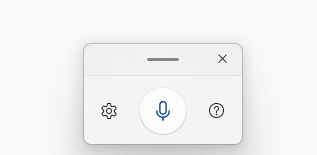
No installation is required: speech to text on Windows is built into the system on both Windows 10 and 11. It works in English by default (and in other languages if configured in your system settings).
The Windows dictation shortcut
The main Windows dictation shortcut is:
- Win+H: activates and deactivates Voice Typing (the built-in dictation). Works on Windows 10 and 11.
- On Windows 11: you can also start dictation by clicking the microphone icon on the touch keyboard.
Do not confuse dictation on Windows with Voice Access. Voice Typing (Win+H) is for writing text by voice. Voice Access is for controlling Windows with your voice: clicking, opening apps, navigating. They are two different features.
If you want to dictate in Word specifically, Win+H works inside Word. Word 365 also has its own Dictate feature (Alt + `) with similar word-for-word results.
Windows 10 speech to text vs Windows 11 voice typing
Windows 10 speech to text and Windows 11 voice typing are not identical. Here are the differences:
| Feature | Windows 10 | Windows 11 |
|---|---|---|
| Win+H shortcut | Yes | Yes |
| Automatic punctuation | No | Yes (optional toggle) |
| Voice Typing interface | Basic | Improved |
| AI text cleanup | No | No |
| Fluid Dictation (local AI) | No | Copilot+ PC only, English only |
In short: Windows speech recognition has improved between Windows 10 and 11, including an optional automatic punctuation toggle in the Voice Typing settings. But the core stays the same: literal transcription with no AI rewriting. You can enable punctuation, yet filler words, awkward phrasing, and spoken-language structure are still written as-is. For text that is cleaned up and ready to use, you need a third-party tool. Microsoft documents the built-in feature in its Voice Typing support page.
The limits of dictation on Windows
Whether you are on Windows 10 or Windows 11, the built-in dictation on Windows shares the same limitations:
- Word-for-word transcription: everything you say is written literally, including hesitations, filler words, and false starts.
- No AI cleanup or rewriting: this is the real gap. Windows 11 can add punctuation automatically (an optional toggle in the Voice Typing settings), and you can still dictate punctuation by voice, but nothing removes filler words, fixes grammar, or restructures spoken sentences into clean prose.
- Spoken-language structure: awkward phrasing, incorrect agreements, and the way people talk are transcribed as-is.
- Variable compatibility: Win+H does not work in all applications or all text fields.
- Limited accuracy: regional accents, technical vocabulary, and ambient noise degrade the quality of Windows speech recognition.
Fluid Dictation: the new Windows 11 feature (with major limits)
In 2025, Microsoft introduced Fluid Dictation, an enhanced version of Voice Typing powered by local AI. It removes hesitations, automatically adds punctuation, and corrects grammar. On paper, this is exactly what professional users need.
Two important caveats
- Copilot+ PC only: Fluid Dictation requires a dedicated NPU chip, found only on Copilot+ PCs launched since 2024. Standard Windows PCs, even recent ones, are not compatible.
- English only: as of 2026, Fluid Dictation is only available in English. Users who need other languages cannot use it.
In practice, most Windows users who want AI-powered voice to text need to turn to a third-party app.
Fast Dictate: the AI voice to text alternative on Windows
Fast Dictate is a voice to text solution for Windows designed to go beyond word-for-word transcription. The AI understands your intent and produces clean, structured text ready to use.
- Automatic AI cleanup: hesitations removed, punctuation added, grammar corrected, spoken sentences restructured into clean prose.
- Works everywhere: Word, Outlook, Chrome, Notion, Slack, any text field on Windows. One shortcut, all your apps.
- Compatible with Windows 10 and 11: no NPU chip required.
- Multilingual: full support for English, French, German, and other major languages.
- GDPR compliant: data in Europe (Standard) or in France on ISO 27001 servers (Pro). Plans start at €9.90/month.
The best voice to text tools on Windows, compared
Here are the main voice to text tools available on Windows in 2026, from the free built-in option to specialized and AI-powered apps:
| Tool | AI cleanup | Processing & data | Platforms | Price | Best for |
|---|---|---|---|---|---|
| Windows Voice Typing (Win+H) | No | Local (on device) | Windows 10 / 11 | Free | Quick, occasional dictation |
| Word Dictate (Microsoft 365) | No | Microsoft cloud | Windows, Mac, web (M365) | Included with Microsoft 365 | Dictating inside Office |
| Dragon (Nuance) | No (specialized vocab) | Local / offline (no cloud) | Windows only | Perpetual license (several hundred $) | Legal / medical specialized vocabulary |
| Wispr Flow | Yes | US cloud | Windows, Mac, iOS, Android | $15/month (free: 2,000 words/week) | Polished mainstream AI dictation |
| SuperWhisper | Yes | Local on Mac, or US cloud (no offline on Windows) | Mac, Windows, iOS | From $8.49/month (free local models) | Power users wanting on-device dictation on Mac |
| Fast Dictate | Yes | EU; France ISO 27001 (Pro) | Windows, Mac, iOS, Android | Free or from €9.90/month | AI dictation with EU data & multilingual support |
Our take
For occasional dictation, the built-in Voice Typing (Win+H, free) is enough. Dragon stays the reference for specialized legal or medical vocabulary running fully offline. Wispr Flow is the polished mainstream AI option if EU data residency is not a concern, and SuperWhisper suits power users who want on-device processing on Mac. Fast Dictate is the pick when you want AI-cleaned dictation across all your apps with data processed in Europe, from €9.90/month.
Frequently asked questions
How do I activate voice to text on Windows?
Press Win+H to open the built-in dictation. Works on Windows 10 and 11. For AI-powered dictation that cleans up your text, try Fast Dictate.
What is the Windows dictation shortcut?
Win+H (Windows key + H). On Windows 11, you can also click the microphone icon on the touch keyboard. Fast Dictate uses its own customizable shortcut.
Is speech recognition better on Windows 11 than Windows 10?
Slightly: Windows 11 adds an optional automatic punctuation toggle and an improved interface. But the core remains the same: literal transcription with no AI cleanup or rewriting.
Does dictation on Windows work in Word?
Yes. Win+H works in Word. Word 365 also has its own Dictate feature (Alt + `). Both are word-for-word. Fast Dictate also works in Word with full AI text cleanup.
Does Fast Dictate work on Windows 10?
Yes. Compatible with Windows 10 and Windows 11, with no special hardware requirements. No NPU chip is needed.
Does Windows Fluid Dictation work in all languages?
No. Fluid Dictation is only available in English in 2026 and requires a Copilot+ PC with an NPU chip. Fast Dictate supports all major languages on any Windows PC.
What is the best alternative to Windows speech recognition?
Fast Dictate is an AI-powered alternative that works in all applications on Windows. It cleans up your speech, adds punctuation, and corrects grammar. Plans start at €9.90/month.
By Pierrick Michel · Updated March 2026