Voice Typing Google Docs: How to Use Speech to Text and the Shortcut (2026)
Voice typing in Google Docs is one of the most searched features for Google Workspace users. Whether you want to dictate on Google Docs to draft emails faster, take meeting notes hands-free, or simply avoid typing, Google Docs does include a built-in speech to text tool, and it is free. It works well within its limits, but those limits are real: it transcribes word for word, punctuation has to be added with voice commands, and it runs only in a desktop browser (Chrome, Edge, or Safari). This guide covers how to enable Google Docs voice typing, what the shortcut is, why Google Docs voice typing is not working for many users, when the built-in tool is enough, and what to use instead for clean, AI-polished text.
How to enable voice typing in Google Docs
Here is how to dictate on Google Docs using the built-in feature, as described in Google's official help page. You need two things: a free Google account and a supported desktop browser. Voice typing runs in the desktop versions of Chrome, Edge, and Safari, but not Firefox. It is also not part of the Google Docs mobile app, where you rely on your phone's own dictation instead.
- Open a document in Google Docs (docs.google.com) using a desktop browser.
- Go to the Tools menu in the menu bar at the top of the screen.
- Click Voice typing. A microphone icon appears on the left side of your document.
- Click the microphone, allow microphone access if prompted, and start speaking.
- Click the microphone again (or press the keyboard shortcut) to stop dictation.
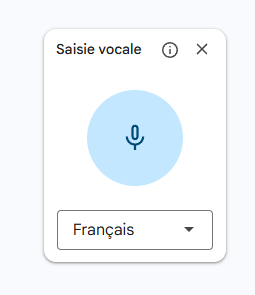
You can dictate in roughly 120 languages, selectable from the small menu below the microphone. That is the basic setup. For a quick sentence or two, it works. But the moment you try to dictate anything longer, an email, a report, a document draft, the limitations become obvious.
The keyboard shortcut for Google Docs dictation
The keyboard shortcut for Google Docs dictation depends on your operating system:
- Windows / Chrome OS: press
Ctrl + Shift + Sto open the voice typing panel. - Mac: press
Cmd + Shift + Sfor the same result.
One thing to note: the shortcut does not start dictating instantly. It opens the voice typing panel with the microphone icon, and you then click the microphone to begin (and click it again to stop). The shortcut works in a supported desktop browser (Chrome, Edge, or Safari), not Firefox, and not in the mobile app. This is the key difference with a system-level tool like Fast Dictate, whose shortcut works everywhere regardless of the browser.
5 limitations of speech to text in Google Docs
If you have tried speech to text in Google Docs and found the results disappointing, you are not alone. Here are the five main limitations:
1. Word-for-word transcription
When you use voice typing in Google Docs, it writes down exactly what you say. Every hesitation, every "um," every false start, every repeated word ends up in your document. If you say "so basically what I want to say is that the project deadline is um next Friday," that is exactly what Google Docs types. You spend more time cleaning up the text than you would have spent typing.
2. Manual punctuation and formatting
Google Docs speech to text does handle punctuation and some formatting, but only when you say it out loud. You say "period" at the end of every sentence, "comma" for pauses, "question mark" for questions, "new line" or "bold" to format. These Google Docs voice commands for punctuation work, yet they break your natural speaking rhythm: instead of thinking about your ideas, you are thinking about commands. Nothing is added automatically.
3. No grammar correction
Speech and writing have different structures. When we speak, we use fragments, run-on sentences, and informal constructions. Voice to text in Google Docs does not correct any of this. What you say is what you get, even if the resulting text reads poorly.
4. No smart formatting
Google Docs dictation produces one continuous block of text. No automatic paragraph breaks, no bullet lists. If you dictate a list of items, they all run together in a single paragraph. You have to manually add structure to your document afterward.
5. Desktop browser only, and Docs only
Google Docs voice typing runs only in a desktop browser (Chrome, Edge, or Safari). It is unavailable in Firefox and in the Google Docs mobile app, where you fall back on your phone's built-in dictation. And wherever it runs, it works inside Google Docs only, not in Gmail, Google Sheets, or any other application. If Google Docs voice typing is not working for you, an unsupported browser is often the reason.
Fast Dictate: AI voice to text for Google Docs
Fast Dictate takes a different approach to voice to text in Google Docs. Instead of transcribing your words literally and waiting for spoken commands, it uses AI to understand your intent and produce clean, well-structured text on its own.
- Understands intent, not just words: the AI processes the meaning of what you say and produces polished sentences. Hesitations, filler words, and false starts are automatically removed. You speak naturally, the output reads as if you had carefully typed it.
- Automatic punctuation and grammar: periods, commas, question marks, and line breaks are added from context, with no spoken commands. Where Google Docs needs you to say "period" or "comma", here it just happens.
- Smart formatting: say "first... second... third..." and it is laid out as a structured list. Mention a new topic and a new paragraph begins.
- Works in any browser: it runs at the operating system level, so it works in Chrome, Firefox, Edge, Safari, or any other browser, with no extension to install.
- Works in any application: Google Docs, Word, Notion, Gmail, Slack, or any text field. One shortcut, every application, including the desktop and mobile apps where Google's tool does not reach.
- GDPR-compliant: data processed in Europe (Standard plan) or exclusively in France on ISO 27001 servers (Pro plan). Unlike Google, your voice data is not sent to US servers.
When Google Docs voice typing is enough
The built-in tool is a genuinely good fit for many people, and it costs nothing. Stick with it if:
- You work only inside Google Docs on a desktop, in Chrome, Edge, or Safari. If you never need dictation in other apps, the integrated feature is right there.
- You want zero installation. Nothing to download or sign up for beyond your existing Google account, and it is built into Workspace.
- You collaborate in real time. Dictation drops straight into a shared document alongside comments and live editing.
- You do not mind editing afterwards and are comfortable saying punctuation and formatting commands out loud as you go.
Speaking is faster than typing for most people, around three times faster according to a 2016 Stanford study, so even the basic tool can save time. The case for an AI alternative starts when you dictate longer pieces, want clean text without manual cleanup, or need dictation outside Google Docs.
Google Docs voice typing vs Fast Dictate
Here is a side-by-side comparison of what you get when you use Google Docs voice typing versus Fast Dictate for speech to text in Google Docs. Google wins on being free, built in, and collaborative; the AI tool wins on output quality, reach, and data residency:
| Feature | Google Docs Voice Typing | Fast Dictate |
|---|---|---|
| Smart transcription | No (word-for-word) | Yes (AI understands intent) |
| Punctuation & formatting | Voice commands only | Automatic |
| Grammar correction | No | Yes |
| Auto paragraphs & lists | No | Yes |
| Browser support | Chrome, Edge, Safari (desktop) | Any browser (OS level) |
| Works outside Google Docs | No | Yes (Word, Notion, Gmail, Slack...) |
| Built into Google Docs | Yes (zero install) | App download |
| Price | Free | Free or €9.90/month |
| GDPR-compliant (EU servers) | No (Google US servers) | Yes (ISO 27001) |
How to use Fast Dictate with Google Docs
Getting started with Fast Dictate in Google Docs is immediate. No Chrome extension, no plugin, no voice training:
- Create a free account on fastdictate.com, 30 seconds, no credit card.
- Download the app (Windows or Mac, compatible with Apple Silicon and Intel).
- Open Google Docs in any browser and click where you want to type. Press your shortcut and speak naturally. Clean, structured text appears directly in your document.
The free plan includes 2,000 words per week, enough to test in your real workflow. The Standard plan at €9.90/month unlocks unlimited dictation. The Pro plan at €19.90/month adds ISO 27001 servers in France and full GDPR compliance.
Frequently asked questions
How do I enable voice typing in Google Docs?
Open a Google Docs document in a desktop browser (Chrome, Edge, or Safari), go to the Tools menu and click Voice typing. A microphone icon appears: click it to start dictating. The shortcut Ctrl + Shift + S on Windows or Cmd + Shift + S on Mac opens the voice typing panel, then you click the microphone. For automatic punctuation and cleanup, try Fast Dictate.
What is the keyboard shortcut for Google Docs dictation?
On Windows and Chrome OS, press Ctrl + Shift + S. On Mac, press Cmd + Shift + S. The shortcut opens the voice typing panel, then you click the microphone to speak; it works in a desktop browser (Chrome, Edge, or Safari). Fast Dictate uses its own configurable shortcut that works in Google Docs and every other application.
Which browsers support Google Docs voice typing?
It works in the desktop versions of Chrome, Edge, and Safari. It does not work in Firefox, and it is not in the Google Docs mobile app, where you use your phone's built-in dictation. Fast Dictate works at the operating system level and inserts text into Google Docs regardless of which browser you use.
Why is Google Docs voice typing not working?
The most common reasons: you are using an unsupported browser such as Firefox, microphone permissions are blocked, or you are using an unsupported language. Use a desktop version of Chrome, Edge, or Safari, check your browser's microphone permissions (click the lock icon in the address bar), and verify the language setting. If the feature remains unreliable, Fast Dictate works in any browser with AI-powered accuracy.
Why does speech to text in Google Docs need so much editing?
Google Docs speech to text transcribes literally, word for word. It does not remove filler words, correct grammar, or restructure sentences, and punctuation has to be added with voice commands. AI-powered tools like Fast Dictate understand intent and produce clean, punctuated text automatically.
Is voice to text in Google Docs free?
Yes, voice to text in Google Docs is free. You only need a Google account and a supported desktop browser (Chrome, Edge, or Safari). However, the quality is limited: word-for-word transcription with no automatic cleanup. Fast Dictate offers 2,000 free words per week with full AI capabilities, and works in every application.
Does Fast Dictate work with Google Docs?
Yes. Fast Dictate works with Google Docs, Word, Notion, Gmail, Slack, and any text field on your computer. It operates at the operating system level, not the browser level. No Chrome extension is needed.
By Pierrick Michel · Updated March 2026